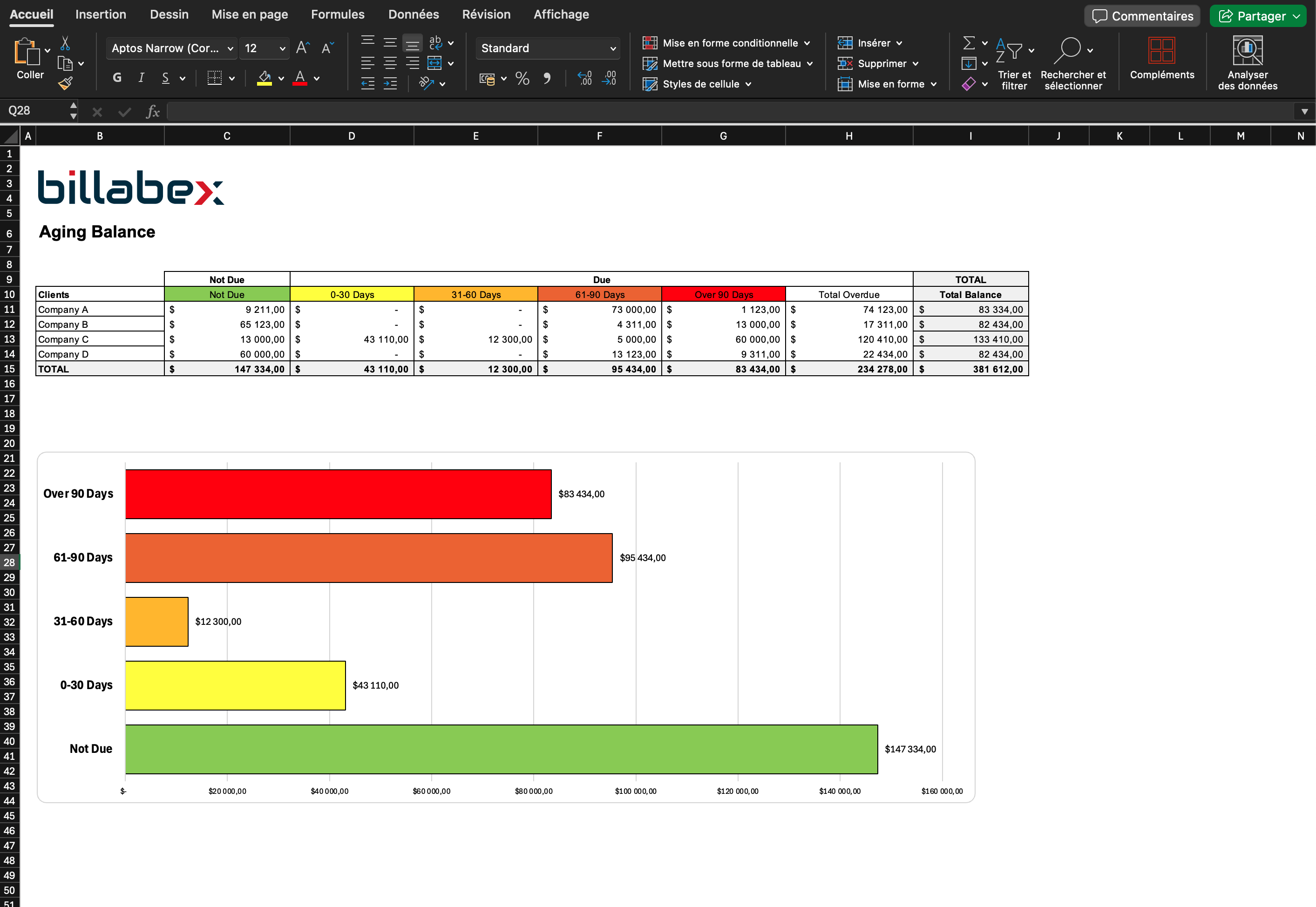
Managing receivables effectively is critical for businesses of all sizes. Late payments can throw off your cash flow, disrupt operations, and even strain client relationships. So, how do you keep tabs on overdue invoices and prioritize collections? The answer lies in an Excel aging balance template—a straightforward, powerful tool that simplifies tracking and boosts your financial control.
What Is an Aging Balance?
An aging balance, also called an accounts receivable aging report, categorizes outstanding invoices by their age. Think of it as a financial snapshot, breaking down what’s owed to you into time brackets:
- Current (not overdue)
- 1–30 days overdue
- 31–60 days overdue
- 61–90 days overdue
- Over 90 days overdue
This categorization helps you quickly identify which clients need a nudge and where the biggest risks lie. After all, the longer an invoice remains unpaid, the slimmer your chances of collecting it.
Why Use Excel for Your Aging Balance?
Sure, there are accounting software solutions out there. But not every business has the budget or the need for such tools. Excel offers a customizable and accessible alternative. With an Excel aging balance template, you can:
- Automate calculations for due dates, overdue amounts, and totals
- Visualize data with charts for easier interpretation
- Adapt the format to suit your specific business needs
- Save time and money while maintaining complete control
Excel’s versatility means it’s not just a tool—it’s your ally in staying on top of receivables without the headaches.
How to Create an Aging Balance in Excel
If you’re new to this, don’t worry—it’s easier than you think. Follow these steps to build your own aging balance:
-
Set up your columnsInclude headers like Invoice Number, Client Name, Invoice Date, Due Date, Amount, and Days Overdue. Add a column for “Age Bracket” to categorize invoices by time ranges.
-
Use formulas for automation
- Calculate days overdue: =TODAY()-[Due Date]
- Assign age brackets using conditional formulas like
=IF([Days Overdue]<=30,"1–30 days",IF([Days Overdue]<=60,"31–60 days",...)).
-
Summarize totalsUse SUMIF to calculate overdue amounts for each bracket. For instance,
=SUMIF([Age Bracket],"1–30 days",[Amount]). -
Add visual elementsCreate pie or bar charts to display overdue amounts by category. These visuals make it easier to communicate issues during team meetings.
-
Format for clarityUse color coding to highlight critical overdue amounts. For example, invoices overdue by 90+ days could appear in red.
Example of an Aging Balance Template
Here’s what a simple aging balance might look like in Excel:
| Client Name | Invoice # | Amount ($) | Invoice Date | Due Date | Days Overdue | Age Bracket |
|---|---|---|---|---|---|---|
| ABC Corp | 00123 | 5,000 | 11/15/2024 | 12/15/2024 | 5 | Current |
| XYZ Inc. | 00124 | 2,200 | 10/01/2024 | 10/31/2024 | 55 | 31–60 days |
| DEF Ltd. | 00125 | 8,750 | 07/01/2024 | 07/31/2024 | 140 | Over 90 days |
This table gives you a clear view of which clients need immediate attention and the total overdue amounts.
The Benefits of an Aging Balance
Why bother with an aging balance at all? Because it’s not just a report—it’s a strategy. By regularly updating and analyzing your aging balance, you can:
- Pinpoint high-risk accounts early
- Focus collections on the most overdue and highest-value invoices
- Improve cash flow predictability
- Strengthen relationships with reliable clients by identifying trends in payment behavior
Common Challenges and How to Address Them
Even with a solid aging balance, you might run into challenges like clients disputing invoices or consistently late payers. Here’s how to tackle these issues:
- Disputed invoices: Keep detailed records to resolve disputes quickly. Ensure your terms and conditions are crystal clear.
- Habitually late payers: Introduce incentives for early payment, such as discounts, or enforce penalties for late payments.
- High overdue amounts: Don’t hesitate to escalate to collections or legal action when necessary.
Automating Your Aging Balance
Excel is great, but if your business grows and you’re handling dozens of invoices, consider transitioning to specialized software. Tools like QuickBooks or FreshBooks can integrate with your existing data, offering real-time updates and automated follow-ups.
However, for small and mid-sized businesses, Excel often remains the simplest, most cost-effective option.
Download Your Free Excel Aging Balance Template
Why start from scratch when you can use a pre-built template? Download our free Excel aging balance template to streamline your receivables management. It’s ready to use with formulas and charts already set up. Customize it to fit your unique needs and start improving your collections process today.
Click here to download your free aging balance Excel template
Conclusion
An Excel aging balance template is more than a spreadsheet—it’s your secret weapon for staying on top of cash flow and client relationships. By categorizing overdue invoices and prioritizing follow-ups, you can reduce risks and keep your finances healthy. Ready to take control? Start with our free template and see the difference it makes.